JavaScript Setup
Before we start writing JavaScript, let's set up the tools you'll need. This won't take long, and once it's done, you'll be ready to code.

To run JavaScript, all you need is a web browser. That's it. If you're on a laptop or desktop, you probably already have one (Chrome, Firefox, Edge, Safari).
If you don't have one yet, we recommend Google Chrome because of its excellent developer tools. Just search "Download Google Chrome" or use the link below. Download Google Chrome
An IDE (Integrated Development Environment) is a program where you write, run, and debug your code, all in one place.
Think of it like a workshop with all your tools on the table. Good IDEs give you helpful features like autocomplete (finishes code for you), syntax highlighting (colors different parts of your code so it's easier to read), and built-in error detection.
Visual Studio Code (VSCode) is a free, open-source code editor that's become the go-to choice for web developers. You could write code in Notepad, but you'd miss out on features like autocomplete, error highlighting, and built-in terminals.
We'll use VSCode throughout this course. Download it here: Download VSCode
After installing, create a folder on your computer for your code. Then open VSCode, go to File ? Open Folder, and select that folder. You're ready to start creating files inside it.
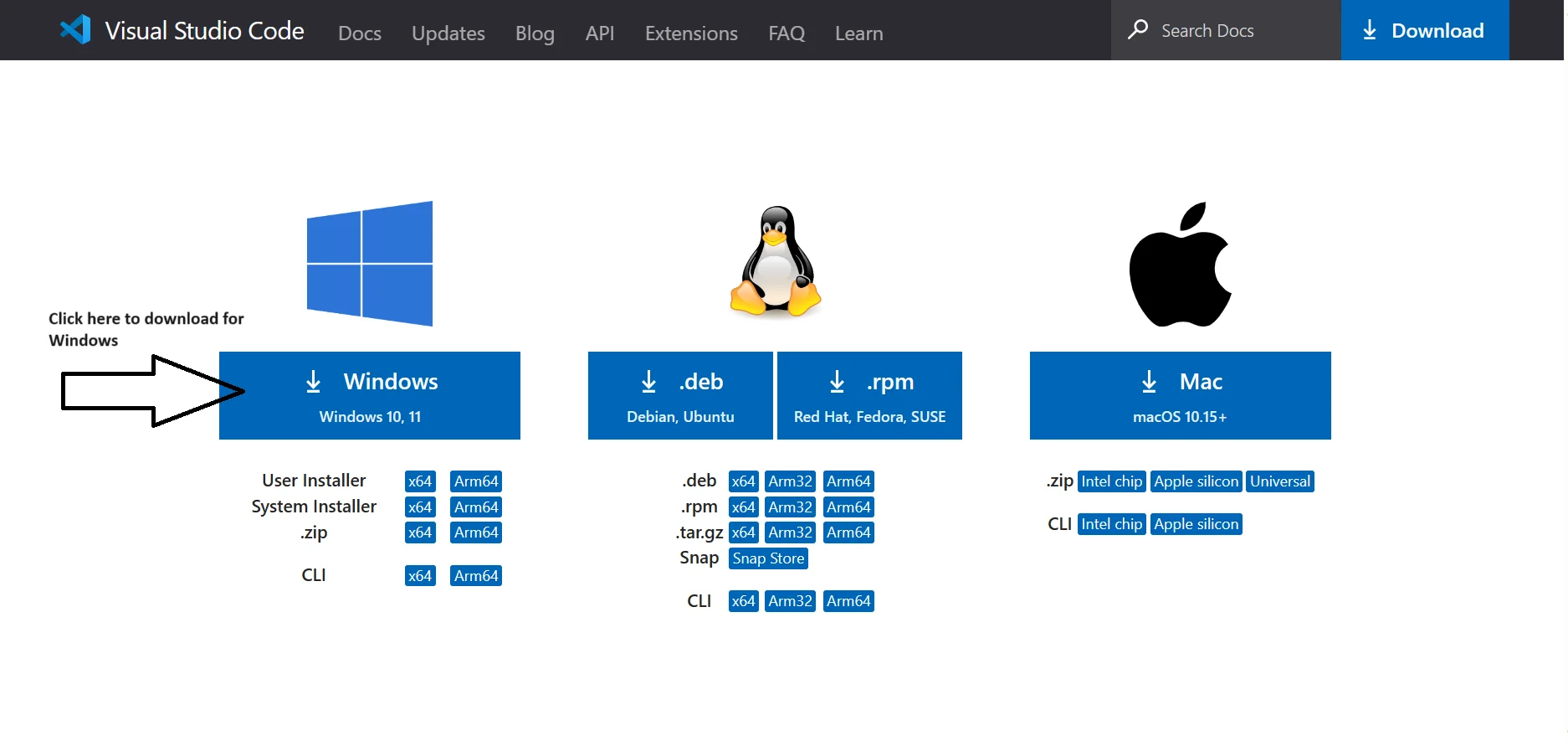
For more details about Visual Studio Code click here or watch our explanatory video.
Extensions are add-ons that give VSCode extra powers. Think of them like apps on your phone. You install them to get new features.
For this course, you only need two extensions. You can always add more later.
-
Live Server: The Live Server
extension in VSCode creates a live preview of your
website. It sets up a local server and updates your
changes instantly in the browser, making it easy to
see how your code affects the website without manual
refreshes.
To lunch live server, right-click anywhere within the HTML file editor or use the shortcut Alt + L, Alt + O (on Windows/Linux) or Option + L, Option + O (on Mac), and select "Open with Live Server." Learn more about Live Server
-
Prettier: Prettier is like an
automatic formatter for your code. It helps make
your code look clean and consistent by automatically
adjusting the formatting. It handles things like
indentation, spacing, and line breaks. It
supports multiple programming languages and can be
integrated into various code editors, making your
code more readable and maintaining a consistent
style across your project.
For setting up prettier please click here

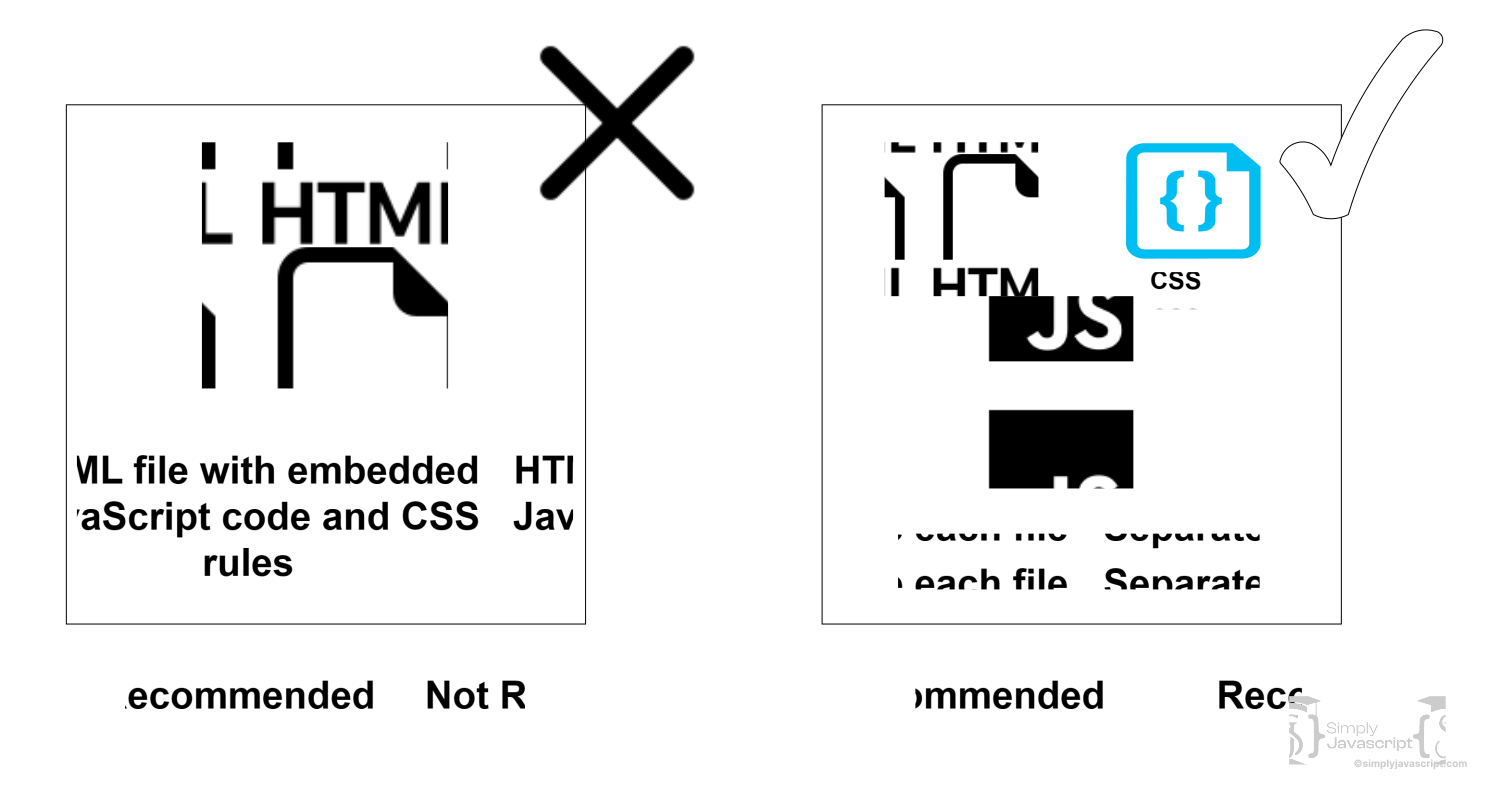
"Separation of concerns" simply means: keep different types of code in different files. Don't mix everything into one giant file.
In web development, this means putting your HTML (structure) in a .html file, your CSS (styling) in a .css file, and your JavaScript (behavior) in a .js file. This keeps your code organized and much easier to debug. As shown above, the diagram illustrates this separation.
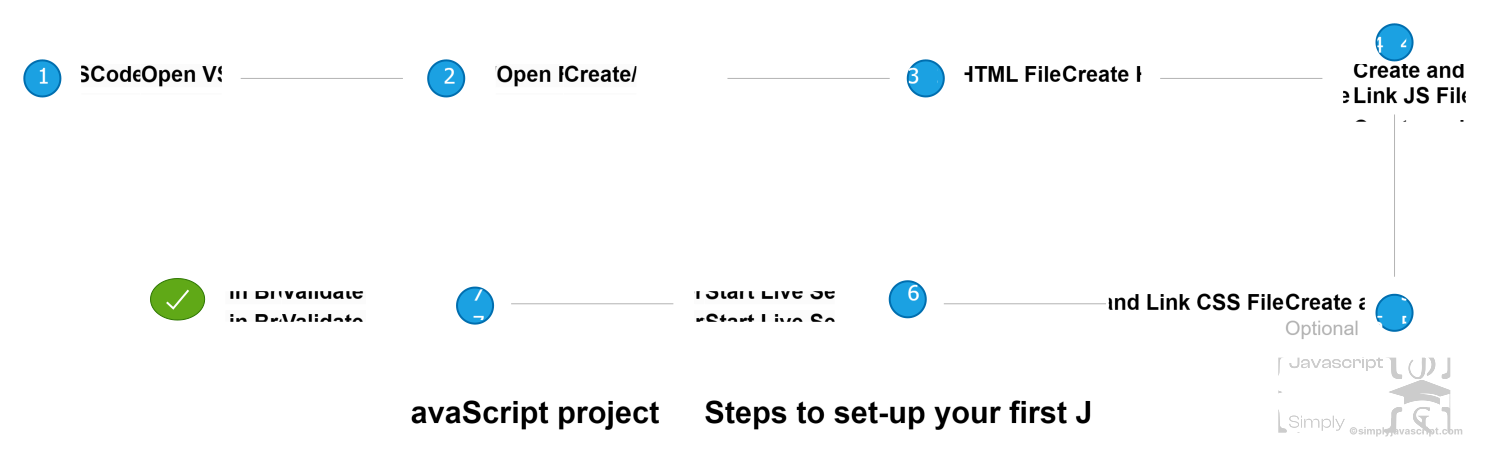
- Step 1: Open VSCode
- Step 2: Create or Open a folder
- Step 3: Create HTML File - Create a new file. Save it with a .html extension (extension tell the operating system and software programs what type of file it is and how to handle it.), for example, index.html. To follow the seperation of concerns prinicple, we will not write JavaScript code directly in the HTML file but will instead link to a separate JavaScript file.
- Step 4: Create JavaScript File - Create a new file and save it with a .js extension, such as script.js. This will contain your JavaScript code. Now open script.js and start writing some JavaScript code. For example:
- Step 5: Run in a Browser/Start Live Server - Open index.html in a web browser. You can right-click on the index.html file and choose "Open with" to select your preferred browser. Check the browser's console (usually accessible by right-clicking, selecting "Inspect," and navigating to the "Console" tab) to see if the JavaScript code is running (Hello, SimplyJavaScript! should appear in the console).
<!DOCTYPE html>
<html lang="en">
<head>
    <meta charset="UTF-8">
    <title>My JavaScript Page</title>
</head>
<body>
//Your HTML content goes here
<script src="script.js"></script>
</body>
</html>console.log("Hello, SimplyJavaScript!");
"use strict" is a way to make JavaScript behave in a stricter, more secure way. It helps catch coding mistakes and makes JavaScript work more predictably. For example: without "use strict," forgetting to declare a variable can create a global variable unintentionally but with "use strict," it throws an error for undeclared variables. For example:
// This code works without 'use strict'
x = 10; // It creates a global variable 'x' accidentally.
console.log(x); // Output: 10'use strict';
x = 10; // This will throw an error because 'x' isn't declared.
console.log(x); // This line won't be executed due to the error above.You can place the "use strict"; directive at the beginning of a script or at the beginning of a function. For example:
//At the beginning of a script:
"use strict";
// Your JavaScript code goes here

//At the beginning of a function:
function myFunction() {
  "use strict";
  // Code for this specific function
}
Placing it at the beginning of a script enables strict mode for the entire script, while putting it within a function makes strict mode specific to that function's scope.
Note: There are many other advantages of using 'use strict' which we will cover in a separate blog.Every modern browser comes with built-in developer tools. These let you inspect your web page, debug errors in your JavaScript, and see what's happening under the hood.
To open them, press F12 or Ctrl+Shift+I (Cmd+Option+I on Mac). You'll use developer tools a lot throughout this course, especially the Console tab where JavaScript errors and output appear.
Note: There are many useful tools in developer tools that help us in web development, which we will cover in a separate blog and discuss all the tools in detail.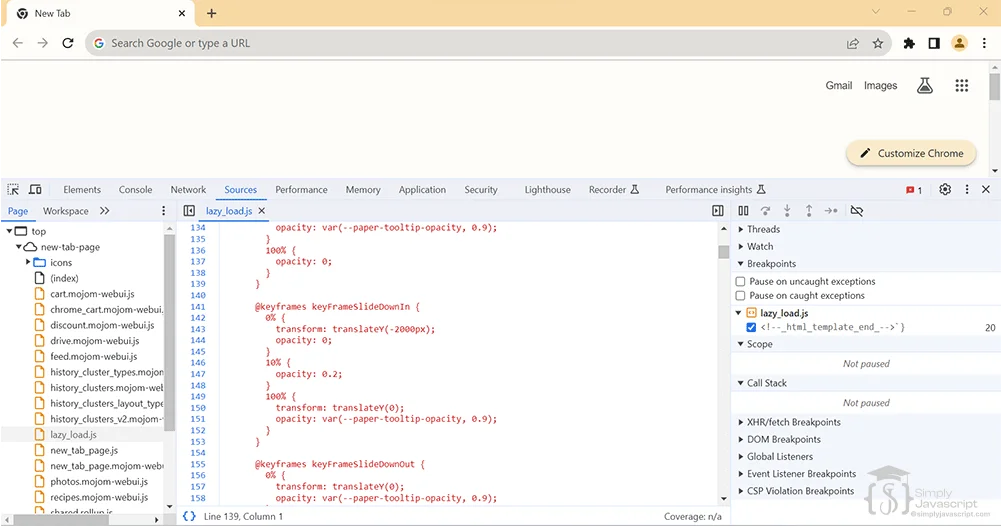
- Web Browser: You only need a browser (like Chrome) to run JavaScript.
- IDE: A program where you write, run, and debug code. We use VSCode because it's free, powerful, and beginner-friendly.
- Extensions: Add-ons for VSCode. Install Live Server (auto-refreshes your page) and Prettier (auto-formats your code).
- Separation of Concerns: Keep HTML, CSS, and JavaScript in separate files.
- "use strict": A line you add at the top of your JS files to catch mistakes early.
- Developer Tools: Built into your browser. Press F12 to open them. You'll use the Console tab to see JavaScript output and errors.
What's next? Now that your setup is ready, let's explore what makes JavaScript special in the next tutorial.
- What is a web browser?
- What is a web page?
- What is web?
- What is an IDE?
- What is seperation of concerns principle?
- What are the difference place where we can write JavaScript code?
- What is the significance of "use strict"?
- Describe the importance of developer tools in web development. Name a few commonly used developer tools and their primary functions.
- Why don't we use "use strict" explicitly in frameworks like Angular and React?


Setup For Javascript