JavaScript Events
An event is something that happens in the browser, like a click, a key press, a mouse movement, or a page finishing loading. You can use JavaScript to listen for these events and run code when they happen.
Events make web pages interactive. Without them, a page would be static content that the user can only read.
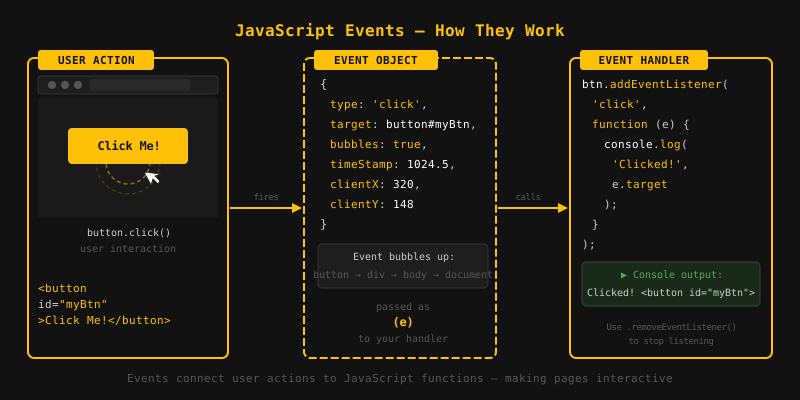
// Listen for a click on a button
const btn = document.getElementById("myBtn");

btn.addEventListener("click", function () {
  console.log("Button was clicked!");
});
The best way to listen for events is
addEventListener(event, handler). You can
attach multiple listeners to the same element, and
remove them later with
removeEventListener.
const btn = document.getElementById("btn");

function handleClick() {
  console.log("Clicked!");
}

// Add listener
btn.addEventListener("click", handleClick);

// Remove listener (must pass the same function reference)
btn.removeEventListener("click", handleClick);

// Arrow function shorthand
btn.addEventListener("click", (event) => {
  console.log("Event type:", event.type); // Output: click
  console.log("Target element:", event.target);
});
Every handler receives an event object
with details about what happened, like the event type,
which element triggered it (event.target),
and methods to control how the event behaves.
The click event fires when the user clicks on an element with the mouse or taps it on a touch screen.
const btn = document.getElementById("btn");

btn.addEventListener("click", function (e) {
  console.log("Clicked at:", e.clientX, e.clientY);
  // e.clientX/Y = mouse position relative to the viewport
});
The change event fires when a form
field's value changes and the field loses focus. You'll
use it most often with <input>,
<select>, and
<textarea>.
// HTML: <select id="color">
//   <option value="red">Red</option>
//   <option value="blue">Blue</option>
// </select>

const select = document.getElementById("color");

select.addEventListener("change", function (e) {
  console.log("Selected:", e.target.value); // e.g. "blue"
});
For real-time updates as the user types, use the
input event instead of change.
Mouse events fire when the user interacts with a page using a mouse or trackpad. The most common ones are:
click: left button clickdblclick: double clickmouseover: pointer moves onto an elementmouseout: pointer leaves an elementmousemove: pointer moves over an elementmousedown: mouse button is pressedmouseup: mouse button is released
const box = document.getElementById("box");

box.addEventListener("mouseover", () => {
  box.style.backgroundColor = "yellow";
});

box.addEventListener("mouseout", () => {
  box.style.backgroundColor = "";
});

box.addEventListener("mousemove", (e) => {
  console.log("Mouse at:", e.clientX, e.clientY);
});
Keyboard events fire when the user presses or releases a key. The two main events are:
-
keydown: fires when a key is first pressed (fires repeatedly if held) -
keyup: fires when the key is released
document.addEventListener("keydown", function (e) {
  console.log("Key pressed:", e.key);
  // e.key gives a readable name like "Enter", "a", "ArrowUp"

  if (e.key === "Enter") {
    console.log("Enter was pressed!");
  }
});

document.addEventListener("keyup", function (e) {
  console.log("Key released:", e.key);
});
Use e.key to get the name of the pressed
key. Use e.ctrlKey, e.shiftKey,
or e.altKey to check if modifier keys are
held.
When an event fires on an element, it bubbles up through the DOM tree to its parent elements. This means parent elements will also receive the event unless you stop it.
// HTML: <div id="parent"><button id="child">Click</button></div>

document.getElementById("child").addEventListener("click", () => {
  console.log("child clicked");
});

document.getElementById("parent").addEventListener("click", () => {
  console.log("parent clicked");
});

// Clicking the button outputs:
// child clicked
// parent clicked  (event bubbled up!)

// To stop bubbling, call stopPropagation()
document.getElementById("child").addEventListener("click", (e) => {
  e.stopPropagation();
  console.log("only child");
});
By default, events are handled in the
bubbling phase (bottom-up). If you pass
true as the third argument to
addEventListener, the listener runs in the
capturing phase (top-down) instead.
Think of it like a round trip: the event travels down from the root to the target (capturing), hits the target, then travels back up to the root (bubbling).
// HTML: <div id="parent"><button id="child">Click</button></div>

// useCapture = true means capturing phase
document.getElementById("parent").addEventListener("click", () => {
  console.log("parent (capturing)");
}, true);

document.getElementById("child").addEventListener("click", () => {
  console.log("child (bubbling)");
});

// Clicking the button outputs:
// parent (capturing)  -- fires FIRST during capture phase
// child (bubbling)Instead of adding a listener to every child element, you can add just one to the parent. Because events bubble up, the parent catches clicks (or other events) from all its children. This pattern is called event delegation.
It works especially well for large lists or elements you add later, since you don't need to rewire listeners every time the content changes.
// HTML: <ul id="list">
//   <li>Item 1</li>
//   <li>Item 2</li>
// </ul>

const list = document.getElementById("list");

// One listener on the parent handles clicks on all <li> children
list.addEventListener("click", function (e) {
  if (e.target.tagName === "LI") {
    console.log("Clicked:", e.target.textContent);
  }
});

// Works even for items added to the list later
const newItem = document.createElement("li");
newItem.textContent = "Item 3";
list.appendChild(newItem); // No new listener needed- An event is a signal that something happened in the browser.
- addEventListener is the standard way to respond to events.
- The event object passed to the handler has information about the event.
- click fires on mouse click or touch; change fires when an input value changes.
- Mouse events (mouseover, mouseout, mousemove) respond to pointer movement.
- Keyboard events (keydown, keyup) respond to key presses.
-
Event bubbling: events travel up from
the target to the root. Use
stopPropagation()to prevent this. -
Event capturing: the opposite
direction; enabled by passing
truetoaddEventListener. - Event delegation: attach one listener to a parent to handle events for all children.