JavaScript Debugging
Debugging means finding and fixing errors (bugs) in your code. Every developer runs into bugs, and learning how to squash them quickly is one of the most useful skills you can build.
A bug can be a typo, wrong logic, or unexpected behavior. Debugging tools help you pause your code, inspect variables, and understand exactly what is happening at each step.
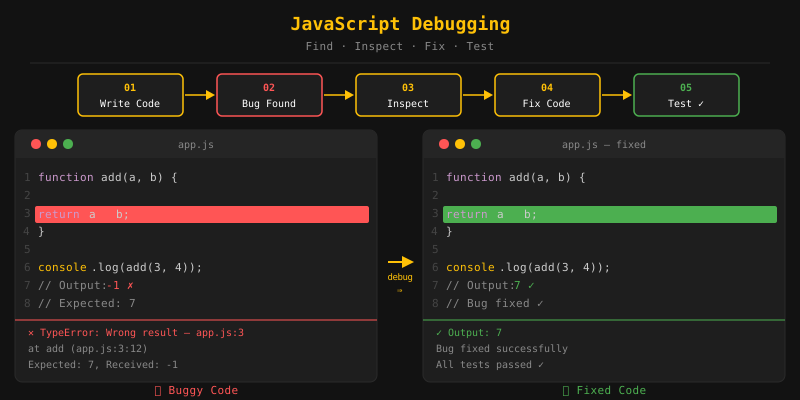
function add(a, b) {
  return a - b; // bug: should be a + b
}

console.log(add(3, 4)); // Output: -1 (wrong, expected 7)
In the example above, a simple typo (- instead of +) causes the wrong result. Debugging helps you catch and correct these issues.
Chrome comes with a built-in toolkit called Developer Tools (DevTools). To open it, just press F12 or right-click anywhere on a page and choose Inspect.
The most useful panels for JavaScript debugging are:
- Console: view log messages, run JavaScript, and see errors.
- Sources: view your source files, set breakpoints, and step through code.
- Network: inspect HTTP requests and responses.
- Elements: inspect and modify the HTML and CSS of the page.
For JavaScript debugging, the Console and Sources panels are your best friends.
Think of a breakpoint as a stop sign for your code. You place it on a specific line, and when the browser reaches that line, everything pauses so you can look around and check your variables.
To add a breakpoint in Chrome DevTools:
- Open DevTools (
F12) and go to the Sources panel. - Open your JavaScript file from the file tree on the left.
- Click the line number where you want to pause. A blue marker appears.
- Reload the page or trigger the action. The code will pause at your breakpoint.
You can also add a breakpoint directly in your code using the debugger statement:
function calculateTotal(price, tax) {
  debugger; // execution pauses here when DevTools is open
  let total = price + tax;
  return total;
}

calculateTotal(100, 18);
The debugger statement only pauses code when DevTools is open. It has no effect in production if DevTools is closed.
When something goes wrong, the browser Console shows a red error message with the file name and line number. Always read it carefully! It usually tells you exactly what broke and where.
Steps to fix an error:
- Open DevTools and go to the Console tab.
- Read the error message and note the file name and line number.
- Click on the file link in the error to jump to that line in the Sources panel.
- Inspect the code and look for mistakes like typos, wrong variable names, missing brackets, etc.
- Fix the code and reload the page to verify the error is gone.
// Error example
console.log(myVar); // ReferenceError: myVar is not defined

// Fix: declare the variable before using it
let myVar = "Hello";
console.log(myVar); // Output: Hello
console.log() is your go-to debugging buddy. It prints whatever you give it to the browser console, whether that's a string, number, object, or array.
let name = "Alice";
let age = 25;

console.log(name);        // Alice
console.log(age);         // 25
console.log(name, age);   // Alice 25

let user = { name: "Alice", age: 25 };
console.log(user);        // { name: "Alice", age: 25 }
You can pass multiple values to console.log() separated by commas, and all of them will be printed on the same line.
console.warn() prints a yellow warning message to the console with a warning icon. Use it for things that aren't broken yet but might cause trouble later.
let age = -5;

if (age < 0) {
  console.warn("Age should not be negative:", age);
}
// Output (in yellow): Age should not be negative: -5
console.error() prints a red error message to the console, complete with an error icon and a stack trace. The stack trace shows you exactly where the error started, which makes tracking it down much easier.
function fetchData(url) {
  if (!url) {
    console.error("Error: URL is required to fetch data.");
    return;
  }
  // proceed with fetch...
}

fetchData(); // Output (in red): Error: URL is required to fetch data.
console.table() takes your arrays or objects and displays them as a clean, readable table in the console. Instead of squinting at nested data, you get nice rows and columns.
const users = [
  { name: "Alice", age: 25 },
  { name: "Bob",   age: 30 },
  { name: "Carol", age: 28 },
];

console.table(users);
// Displays a formatted table with columns: name, age
This is much easier to read than console.log(users) when you have an array of objects.
Fixing bugs gets a lot easier when you follow a clear process. Here are the steps that'll save you time.
1. Identifying the Bug
First, you need to spot that something is off. Maybe there's an error on screen, a red message in the console, or the output just looks wrong. Ask yourself: what did I expect to happen, and what actually happened?
// Expected: multiply(3, 4) should return 12
// Actual: it returns 7
function multiply(a, b) {
  return a + b; // bug identified: using + instead of *
}
2. Finding the Bug
Now that you know something is wrong, track down exactly where the problem lives. Use console.log(), breakpoints, or the DevTools Sources panel to follow your code's path and check variable values.
function multiply(a, b) {
  console.log("a:", a, "b:", b); // log inputs to trace the issue
  return a + b;
}

console.log(multiply(3, 4)); // Output: a: 3 b: 4 then 7 (reveals the bug)
3. Fixing the Bug
Once you've found the problem, fix it! Make a small, focused change and test to make sure it works without breaking anything else.
function multiply(a, b) {
  return a * b; // fixed: changed + to *
}

console.log(multiply(3, 4)); // Output: 12
4. Not Repeating Bugs
Once you've fixed the bug, take a moment to ask: why did this happen? Write a test for it, add a comment, or clean up the code so it's less confusing. That way, the same bug won't sneak back in.
JavaScript has several built-in error types. Knowing them helps you quickly understand what went wrong.
Syntax Error
You'll get a SyntaxError when your code has a typo or is written in a way JavaScript can't understand. Your code won't run at all until you fix it.
// Missing closing parenthesis
console.log("Hello"
// SyntaxError: Unexpected end of input
Reference Error
A ReferenceError pops up when you try to use a variable that doesn't exist yet.
console.log(myVariable);
// ReferenceError: myVariable is not defined
Type Error
A TypeError means you tried to do something a value doesn't support, like calling .toUpperCase() on a number or reading a property from null.
let num = 42;
num.toUpperCase();
// TypeError: num.toUpperCase is not a function

let obj = null;
console.log(obj.name);
// TypeError: Cannot read properties of null
Internal Error
An InternalError comes from the JavaScript engine itself. The most common cause is infinite recursion, where a function keeps calling itself until the engine runs out of space.
function recurse() {
  return recurse(); // calls itself forever
}

recurse();
// InternalError: too much recursion (in Firefox)
// RangeError: Maximum call stack size exceeded (in Chrome)
Range Error
A RangeError shows up when you pass a value that's outside the allowed range, like trying to create an array with a negative length.
let arr = new Array(-1);
// RangeError: Invalid array length

let num = 3.14159;
console.log(num.toFixed(200));
// RangeError: toFixed() digits argument must be between 0 and 100
URI Error
A URIError happens when you pass a badly formatted URI to functions like decodeURIComponent().
decodeURIComponent("%");
// URIError: URI malformed- Debugging is finding and fixing errors in code.
- Chrome DevTools provides Console, Sources, Network, and Elements panels to help debug.
- A breakpoint pauses code execution at a specific line so you can inspect state.
- The
debuggerstatement adds a breakpoint directly in code. console.log()prints values for inspection.console.warn()prints a yellow warning message.console.error()prints a red error message with a stack trace.console.table()displays arrays and objects as a table.- Bug fixing steps: Identify, Find, Fix, Prevent recurrence.
- SyntaxError: invalid code syntax.
- ReferenceError: using an undeclared variable.
- TypeError: wrong type operation.
- InternalError: engine-level error (e.g., stack overflow).
- RangeError: value out of allowed range.
- URIError: malformed URI in URI functions.
What's next? Now that you know how to find and fix bugs, let's move on to working with numbers and dates in the next tutorial.
- What is debugging in JavaScript?
- What are Chrome DevTools and how do you use them for debugging?
- What is a breakpoint and how do you add one?
- What is the difference between console.log(), console.warn(), and console.error()?
- What are the different types of errors in JavaScript?
- What is the difference between a ReferenceError and a TypeError?
Videos for this topic will be added soon.